Web Components
References
-
Good guides on how to build out an Angular web component
Set up a component as a web component
Create an Angular application
** Note **
Most of the tutorials suggest turning off routing and sticking with CSS but I used SCSS and it seemed to work fine.
Most of the tutorials suggest turning off routing and sticking with CSS but I used SCSS and it seemed to work fine.
ng new {your-app-name}
Add Angular Elements
cd your-app-name
ng add @angular/elements
Running the add @angular/elements command will add two items to the application's package.json dependency list: @angular/elements and document-register-element
Add a component to the application
ng generate component componentName
** Note **
If routing is turned off, add the component to src/app/app.component.html. This way, you will be able to test the component by running the app.
<app-component-name></app-component-name>
If routing is turned off, add the component to src/app/app.component.html. This way, you will be able to test the component by running the app.
<app-component-name></app-component-name>
Set component's encapsulation
These are rules on how isolated the component will be from the outside environment.
-
Add ViewEncapsulation to the import statements
-
Add the encapsulation param to the
@Componentmetadata.- Possible choices are: Emulated, Native, None, and ShadowDom
-
Comment out the selector param since we'll be defining the element selector in the app module file.
import { Component, ViewEncapsulation } from '@angular/core';

@Component({
  //selector: 'msg-wc',
  templateUrl: './msg-wc.component.html',
  styleUrls: \['./msg-wc.component.scss'\],
  encapsulation: ViewEncapsulation.Emulated
})
export class MsgWcComponent {

  constructor() { }

}
Make the component a custom element
To this point, the component is a normal component within the application. We need to specify that this component is a custom element.
Update app.module.ts
import  { Injector, CUSTOM\_ELEMENTS\_SCHEMA} from '@angular/core';
import  { createCustomElement } from '@angular/elements';
Add the component to the bootstrap array
@NgModule({
  declarations: \[
    AppComponent,
    MsgWcComponent
  \],
  imports: \[
    BrowserModule
  \],
  providers: \[\],
  schemas: \[ CUSTOM\_ELEMENTS\_SCHEMA \],
  bootstrap: \[AppComponent , MsgWcComponent\]
})
export class AppModule {}
Inject Injector as a dependency
export class AppModule {
  constructor(private injector: Injector) {}
}
Transform the component to a custom element
export class AppModule {
  constructor(private injector: Injector) {
    const el = createCustomElement(MsgWcComponent, { injector });
    customElements.define('msg-wc', el);
  }
}
Add an 'output' directory and scripts to build to this directory (optional)
Add a new directory called output to the application's root. This directory can be used to concatenate all the generated JS files together and house a preview of the web component using a local NPX instance.
Add HTML for preview
The .js references are based on the generated JS file names outlined in the next step.
<!doctype html>
<html lang="en">
<head>
  <meta charset="utf-8">
  <title>App Preview</title>
  <base href="/">
  <meta name="viewport" content="width=device-width, initial-scale=1">
  <link rel="icon" type="image/x-icon" href="favicon.ico">
<link rel="stylesheet" href="styles.css"></head>
<body>
  <app-root></app-root>
  <script src="app-es2015.js" type="module"></script>
  <script src="app-es5.js" nomodule defer></script>
</body>
</html>
Create a script to copy files from ‘dist' to ‘output'
Create a Js file in the application's root (e.g. build-output.js)
const fs = require('fs-extra');
const path = require('path');
const concat = require('concat');
const appName = 'basic-wc';

var copyFile = (file, dir2)=>{
  var f = path.basename(file);
  var source = fs.createReadStream(file);
  var dest = fs.createWriteStream(path.resolve(dir2, f));

  source.pipe(dest);
  source.on('end', function() { console.log('Succesfully copied'); });
  source.on('error', function(err) { console.log(err); });
};

concatenate = async () =>{
    const filesEs5 = \[
        \`./dist/${appName}/runtime-es5.js\`,
        \`./dist/${appName}/polyfills-es5.js\`,
        \`./dist/${appName}/main-es5.js\`
      \];

      const filesEs2015 = \[
        \`./dist/${appName}/runtime-es2015.js\`,
        \`./dist/${appName}/polyfills-es2015.js\`,
        \`./dist/${appName}/main-es2015.js\`
      \];

      await fs.ensureDir('./output');
      await concat(filesEs5, './output/app-es5.js');
      await concat(filesEs2015, './output/app-es2015.js');
}
concatenate();

copyFile(\`./dist/${appName}/favicon.ico\`, './output/');
copyFile(\`./dist/${appName}/styles.css\`, './output/');
Update package.json
Install some libraries that will be used to concatenate the JS files and host a preview of the component.
npm install --save-dev concat
npm install --save-dev fs-extra
npm install --save-dev npx
Add the following to the package.json scripts.
"package:output": "ng build --prod --output-hashing=none && node build-output.js",
"preview:output": "npx live-server output",
Consume an Angular Web Component
Sample setup to consume an Angular web component from another Angular application.
Update app.module.ts
Import CUSTOM_ELEMENTS_SCHEMA
Import CUSTOM\_ELEMENTS\_SCHEMA and add it to the @ngModule metadata's schemas list.

import { BrowserModule } from '@angular/platform-browser';
import { NgModule, CUSTOM\_ELEMENTS\_SCHEMA } from '@angular/core';

import { AppRoutingModule } from './app-routing.module';
import { AppComponent } from './app.component';

import '../../bin/web-components/BasicWcEs2015';

@NgModule({
  declarations: \[
    AppComponent
  \],
  imports: \[
    BrowserModule,
    AppRoutingModule
  \],
  providers: \[\],
  schemas: \[ CUSTOM\_ELEMENTS\_SCHEMA \],
  bootstrap: \[AppComponent\]
})
export class AppModule { }
Import a reference to the web component JS
In this particular example, I created a bin/web-components directory at the root of the app that is consuming the web component.
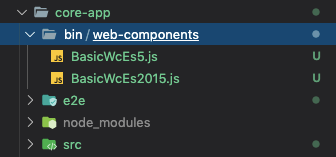
Since the app is set up to target es2015, I pointed to the es2015 version of the web component's JS in app.module.ts.
import '../../bin/web-components/BasicWcEs2015';
Tell TypeScript to allow importing JS files
Add "allowJs": true to the compilerOptions configuration in tsconfig.json.